Manage Your Organization
Everything on Alien Intelligence is scoped to an organization — data clusters, datasets, members, billing, and API tokens all belong to an organization. This guide covers how to manage your organization's team, permissions, and API access.
Organization Basics
An organization is the top-level boundary for all your resources:
| Resource | Scoped To |
|---|---|
| Data clusters | Organization |
| Datasets and entries | Organization (via cluster) |
| Team members | Organization |
| API tokens | Organization |
| Billing and subscriptions | Organization |
| Workflows | Organization |
When you first sign up, the platform creates a personal organization for you. You can create additional organizations or be invited to existing ones.
Switching Organizations
If you belong to multiple organizations, switch between them using the dropdown at the top-left of the navigation sidebar. Click on your current organization name to see the list of organizations you belong to.
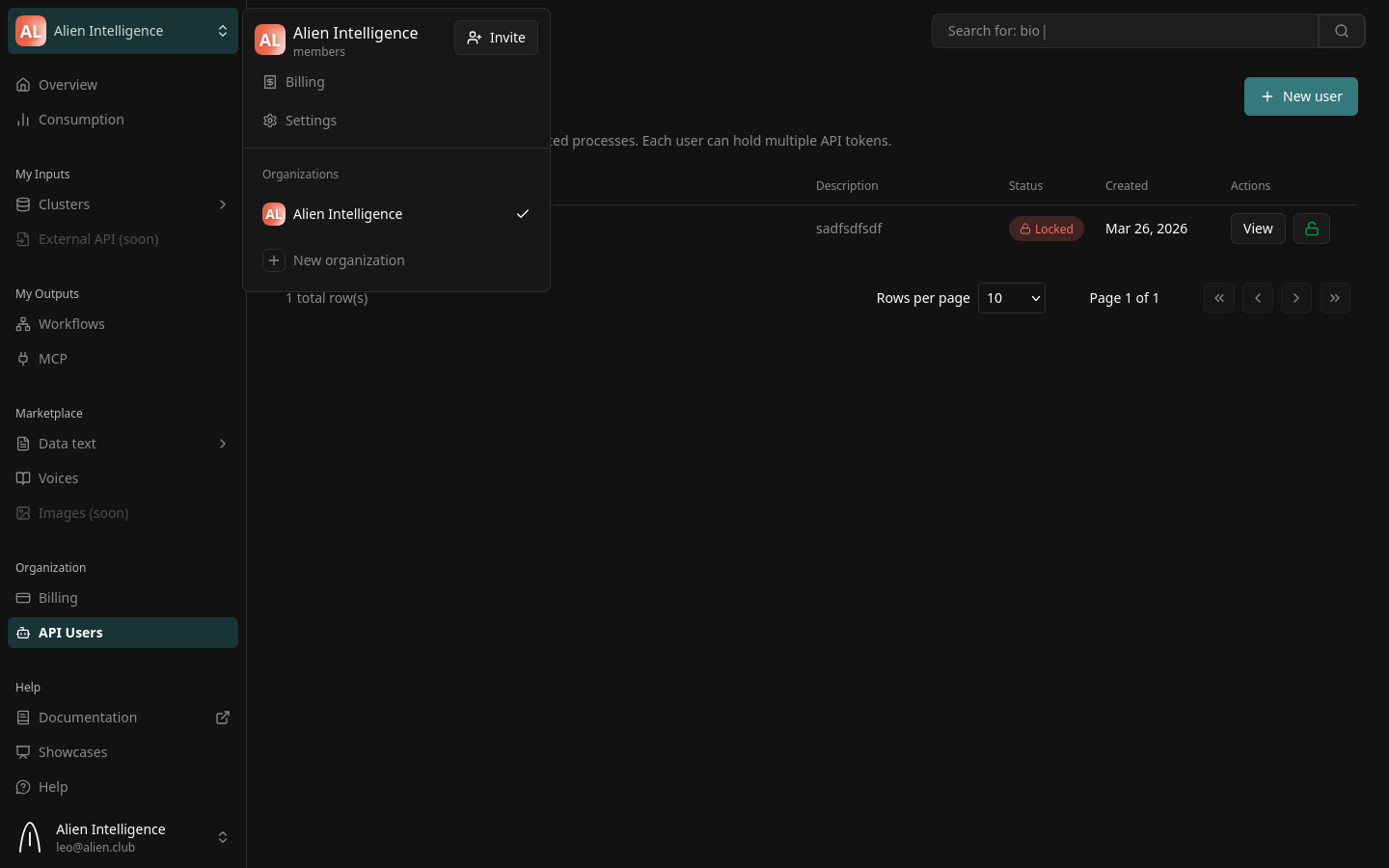
All data in the platform — clusters, datasets, members, billing — updates to reflect the selected organization.
Roles and Permissions
Organization members are assigned one of three roles:
| Role | Permissions |
|---|---|
| Viewer | View clusters, datasets, entries, and search results. Cannot create or modify resources. |
| Writer | Everything a Viewer can do, plus: create datasets, upload entries, trigger pipelines, run workflows. |
| Owner | Everything a Writer can do, plus: manage members, manage billing, create and delete clusters, configure data planes. |
Most team members should have the Writer role. Reserve Owner for administrators who need to manage billing and team membership.
Enterprise: Client Role
For enterprise customers, an additional Client role is available. Client users come in two types:
- Service Accounts — authenticate via API tokens for programmatic access by downstream consumers and automated pipelines.
- Managed Users — authenticate via email and password (OAuth) for people who need to log in to the platform.
Both types are managed through the Organization Users section (separate from regular organization members). See Organization User Management for the full guide.
The Organization Users section is visible in the left sidebar under Organization > API Users for enterprise plans.
Inviting Team Members
Owners can invite new members to the organization:
- Navigate to Organization (click your organization name in the sidebar).
- Go to the Members tab.
- Click Invite Member.
- Enter the email address of the person you want to invite.
- Select a role (Viewer, Writer, or Owner).
- Click Send Invitation.
The invited person receives an email with a link to accept the invitation. If they do not have an account, they will be prompted to create one during the acceptance flow.
Managing Pending Invitations
You can view and revoke pending invitations from the Members tab. Pending invitations show the invitee's email, the assigned role, and when the invitation was sent.
Updating Member Roles
To change a member's role:
- Go to the Members tab.
- Find the member in the list.
- Click the role dropdown next to their name and select the new role.
Removing Members
To remove a member from the organization:
- Go to the Members tab.
- Find the member in the list.
- Click the remove button.
Removing a member immediately revokes their access to all organization resources. Any API tokens they created continue to work until explicitly revoked.
API Tokens
API tokens provide programmatic access to the platform API. They are used for scripts, CI/CD pipelines, SDK integrations, and any non-interactive access.
Creating an API Key
- Navigate to the Keys section in the left sidebar.
- Click Generate API Key.
- Enter a Name for the key (e.g., "CI Pipeline", "Python SDK", "Data Sync Script"). The name cannot be changed after creation.
- Select an Expiration period (Never, 30 days, 90 days, or 1 year).
- Click Generate API Key.
The key is displayed once after creation. Copy it immediately — you will not be able to see it again.
Store API tokens securely. Treat them like passwords. Do not commit them to version control or share them in chat messages.
Token Format
API tokens use the format oat_ followed by a random string:
oat_MjQ.dGVzdF90b2tlbl9leGFtcGxl...
Use the token in API requests as a Bearer token:
curl -H "Authorization: Bearer oat_YOUR_TOKEN" https://api.alien.club/datasets
Token Abilities
Configuring individual token abilities is coming soon. Currently, API keys are issued with full access to all operations within your organization. The complete ability reference will be documented when granular configuration is available in the UI.
Revoking a Token
To revoke a token:
- Go to the Keys section.
- Find the token in the list.
- Click Revoke.
Revocation is immediate. Any requests using the revoked token will receive a 401 Unauthorized response.
Billing
Billing is managed per organization through the Billing section in the left sidebar.
Subscription Management
The Billing page shows:
- Your current subscription plan.
- Payment methods on file.
- Recent invoices and payment history.
- Tax ID configuration.
To update your payment method or subscription, use the controls on the Billing page. The platform uses Stripe for payment processing.
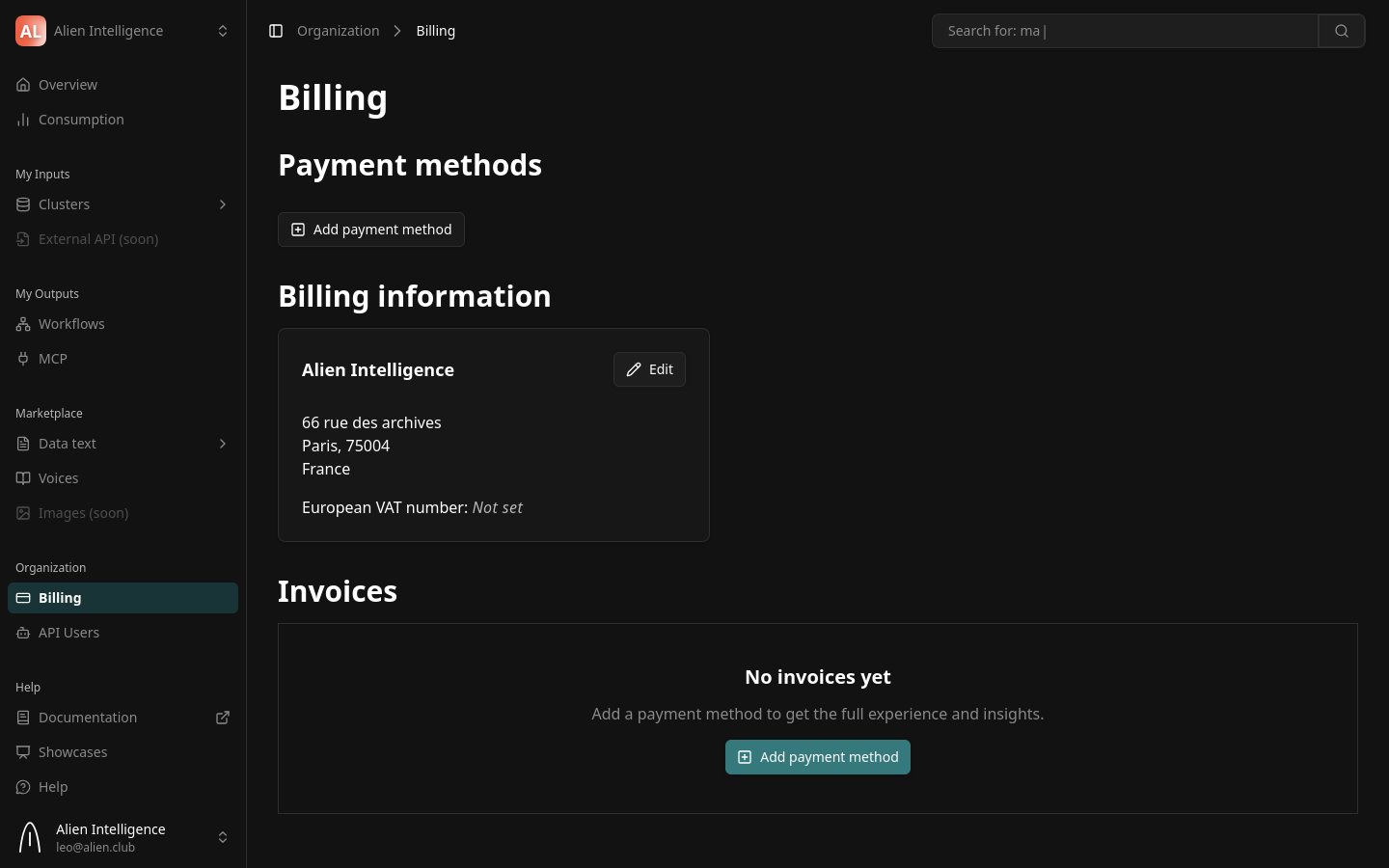
Adding a Payment Method
- Go to Billing.
- Click Add Payment Method.
- Enter your card details in the Stripe-powered form.
- Click Save.
Viewing Invoices
Past invoices are listed in the Billing section with their status (paid, pending, failed) and a link to download each invoice as a PDF.
Next Steps
- Getting Started — Platform overview and navigation
- Security Model — Authentication and authorization architecture
- Platform API Overview — Using API tokens with the platform API