Organization User Management
Enterprise organizations can manage two types of users from a single interface: Service Accounts for programmatic API access, and Managed Users who log in to the platform with email and password.
User Types
| Type | Authentication | Use Case |
|---|---|---|
| Service Account | API tokens | Pipelines, automated processes, downstream client integrations |
| Managed User | Email + password (OAuth) | Team members, collaborators, or clients who need platform access |
Both types are managed from the Organization Users page and share the same lifecycle (create, deactivate, reactivate).
Prerequisites
- An Enterprise plan with the Client role enabled for your organization.
- For managed users: the organization's identity provider (Authentik) must have a recovery email flow configured.
Navigate to Organization Users
The Organization Users section is available under Organization in the left sidebar. This section only appears for organizations on the Enterprise plan.
- Click your organization name in the sidebar.
- Select API Users from the Organization group.
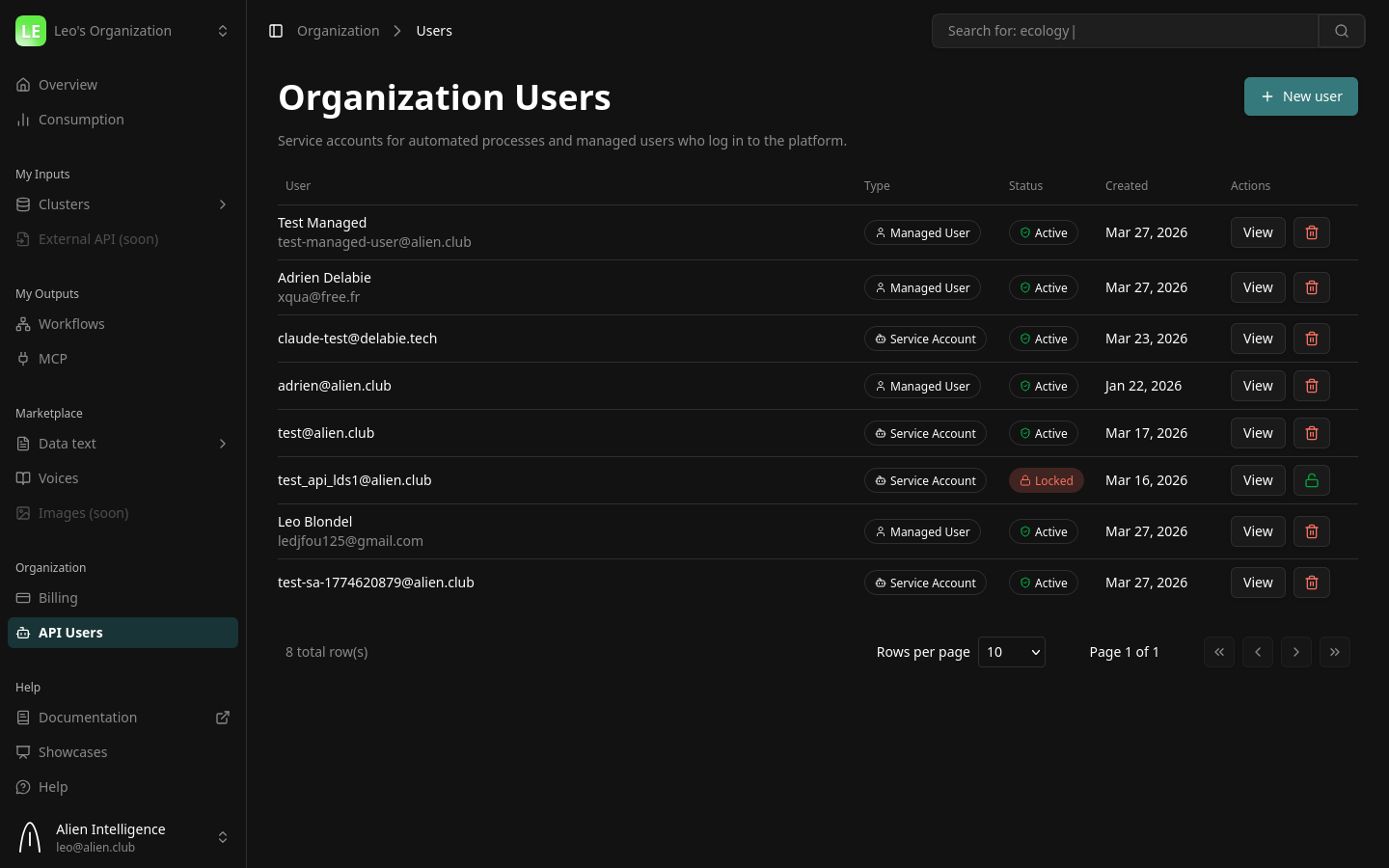
The table displays all organization users with their type (Service Account or Managed User), status (Active or Locked), and creation date.
Creating a User
Click New user in the top-right corner. A two-step wizard guides you through the process.
Step 1: Choose Type
Select the type of user you want to create:
- Service Account — For pipelines and automated processes. Authenticates with API tokens.
- Managed User — For people who log in with email and password via the platform.
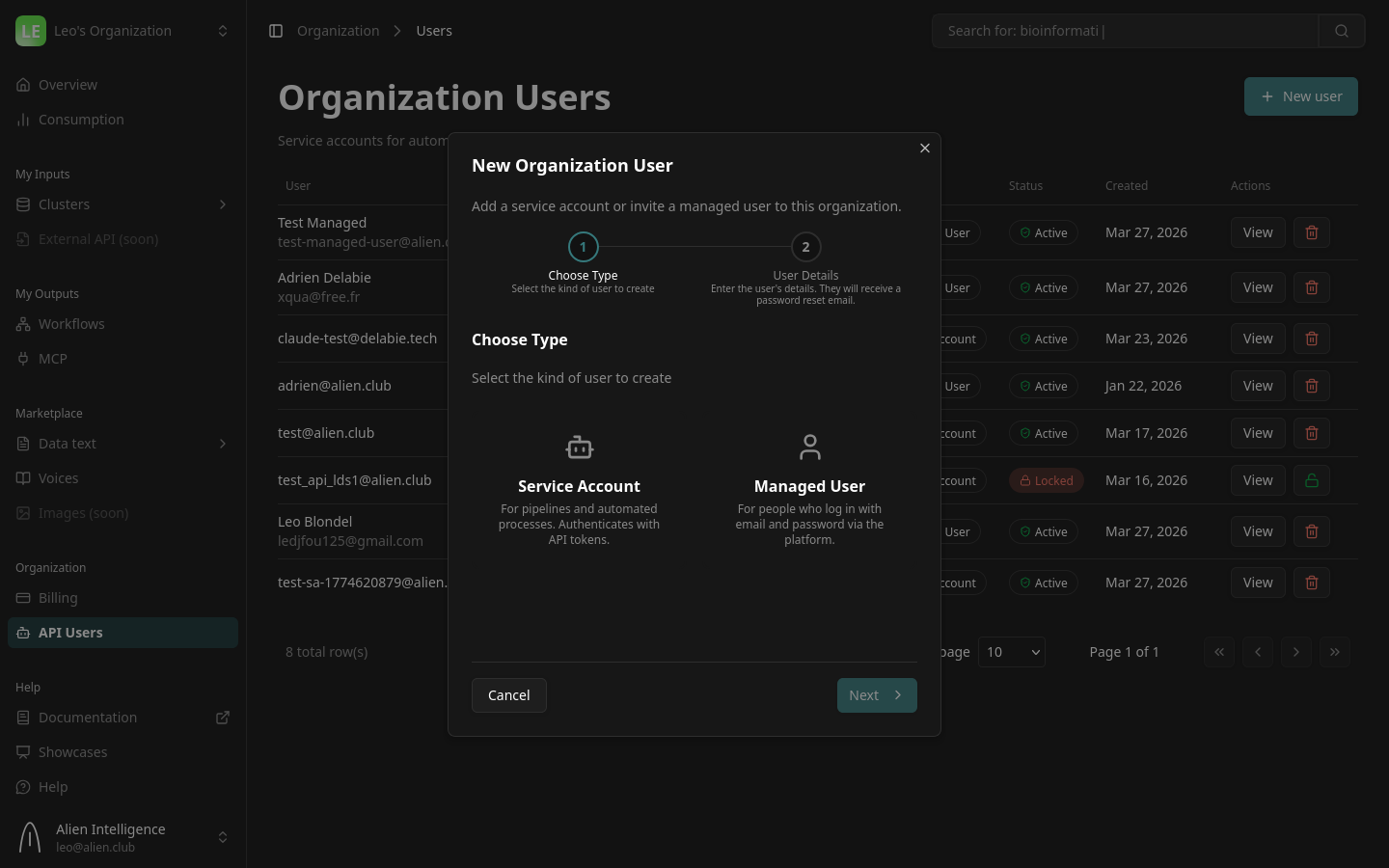
Click Next after selecting a type.
Step 2: Fill in Details
The form fields depend on the user type you selected.
Service Account Fields
| Field | Description | Example |
|---|---|---|
| A unique identifier for the service account. Does not need to be a real mailbox. | pipeline-bot@yourcompany.com | |
| Description | Optional note describing the purpose. | Nightly ingestion pipeline |
Managed User Fields
| Field | Description | Example |
|---|---|---|
| The user's real email address. They will receive a password reset link here. | jane.doe@yourcompany.com | |
| First Name | The user's first name. | Jane |
| Last Name | The user's last name. | Doe |
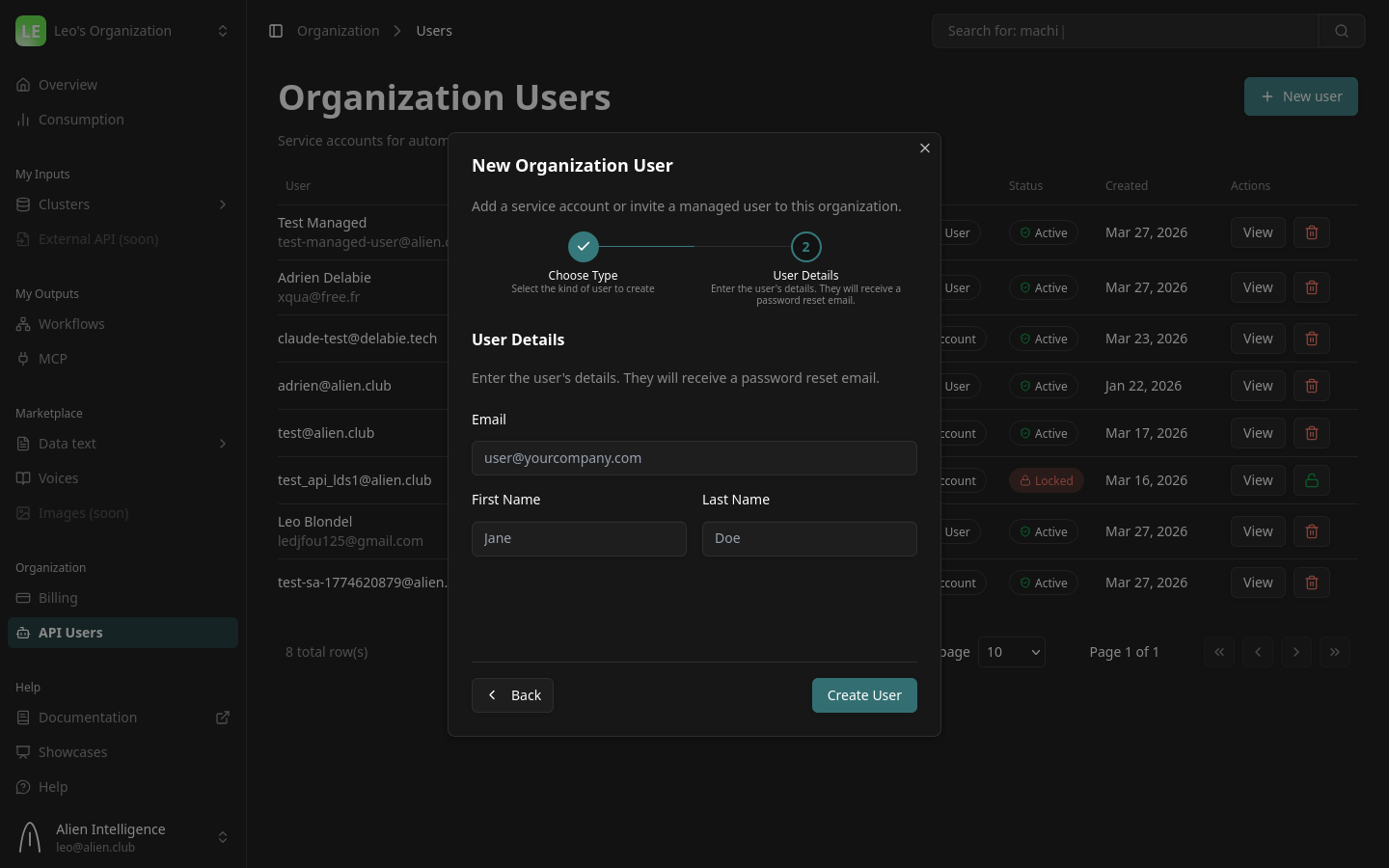
Click Create User to finalize.
What happens on creation:
- Service Account: Created in the local database. You can immediately issue API tokens.
- Managed User: Created in both the local database and the identity provider (Authentik). A password reset email is sent automatically so the user can set their credentials and log in.
For managed users, the password reset email is sent immediately after creation. If the user doesn't receive it, you can resend it from the user detail panel.
Managing Service Accounts
Service accounts authenticate via API tokens. Click View on a service account to open the detail panel.
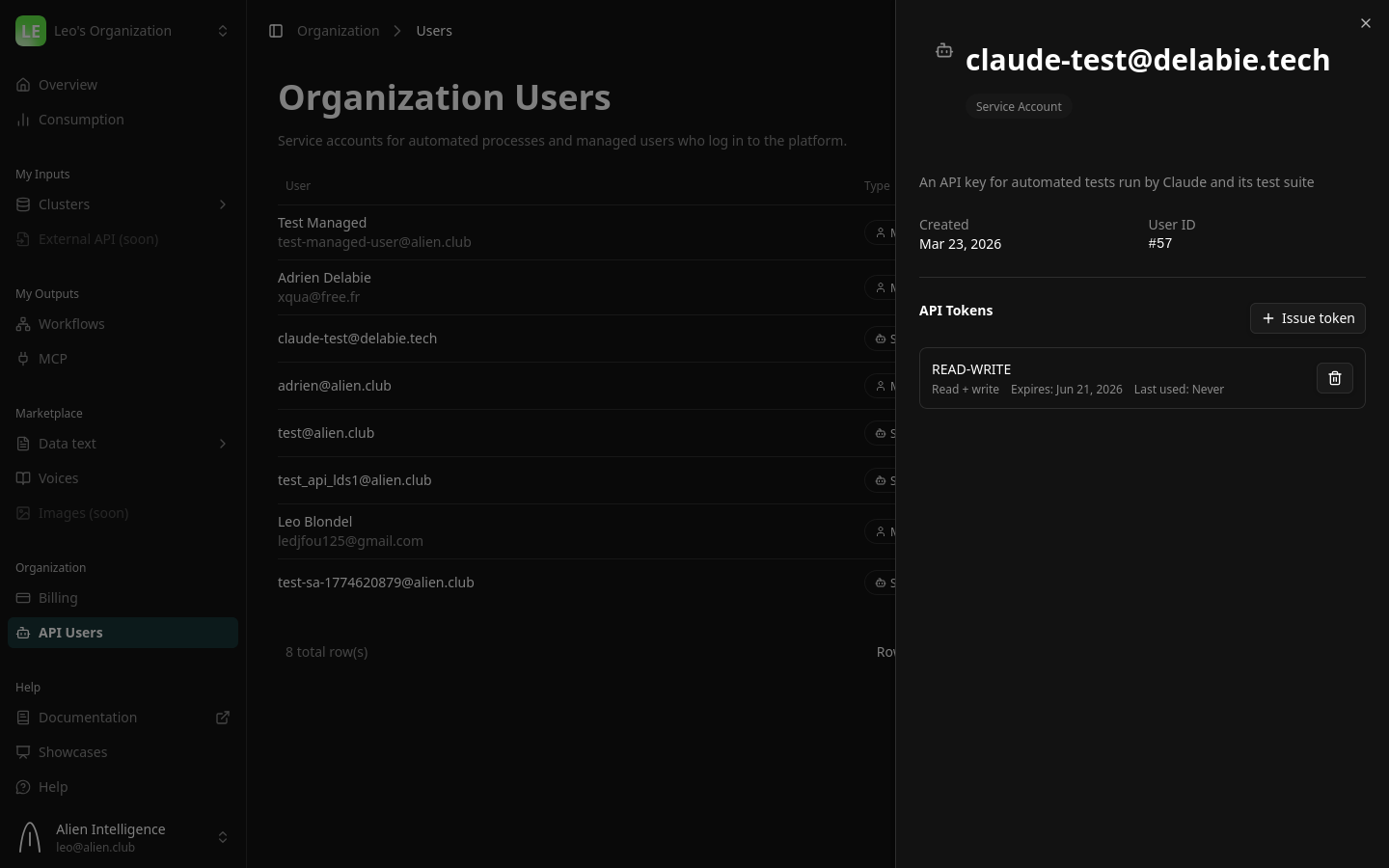
Issuing an API Token
- Click View on the service account.
- Under API Tokens, click Issue token.
- Configure the token:
| Field | Options | Recommendation |
|---|---|---|
| Name | A descriptive label. | Use the client name or integration name (e.g., Acme Production Token). |
| Scope | Read-only (api-key) or Read + write (api-secret). | Use Read-only for clients who only need to search and read documents. |
| Expiry | Never, 30 days, 90 days, or 1 year. | Set an expiry that matches your contract renewal cycle. |
- Click Issue token.
The token value is displayed only once. Copy it and store it securely before closing the dialog. If you lose the token, you will need to issue a new one.
Using the Token
The API token authenticates as the service account user. Use it as a Bearer token in API requests:
curl -H "Authorization: Bearer oat_YOUR_TOKEN" https://api.alien.club/datasets
For MCP server access, configure the token in your AI tool's MCP settings:
{
  "mcpServers": {
    "your-documents": {
      "type": "http",
      "url": "https://mcp.yourcluster.alien.club/mcp",
      "headers": {
        "Authorization": "Bearer oat_YOUR_TOKEN"
      }
    }
  }
}
Rotating a Token
To rotate without interrupting service:
- Issue a new token.
- Send the new token to the consumer.
- Once they've switched, revoke the old one by clicking the trash icon.
Issue the new token before revoking the old one. This gives consumers time to update their configuration without authentication failures.
Revoking a Token
Click the revoke button (trash icon) next to any token. Revocation is immediate — any request using the revoked token receives a 401 Unauthorized response.
Managing Managed Users
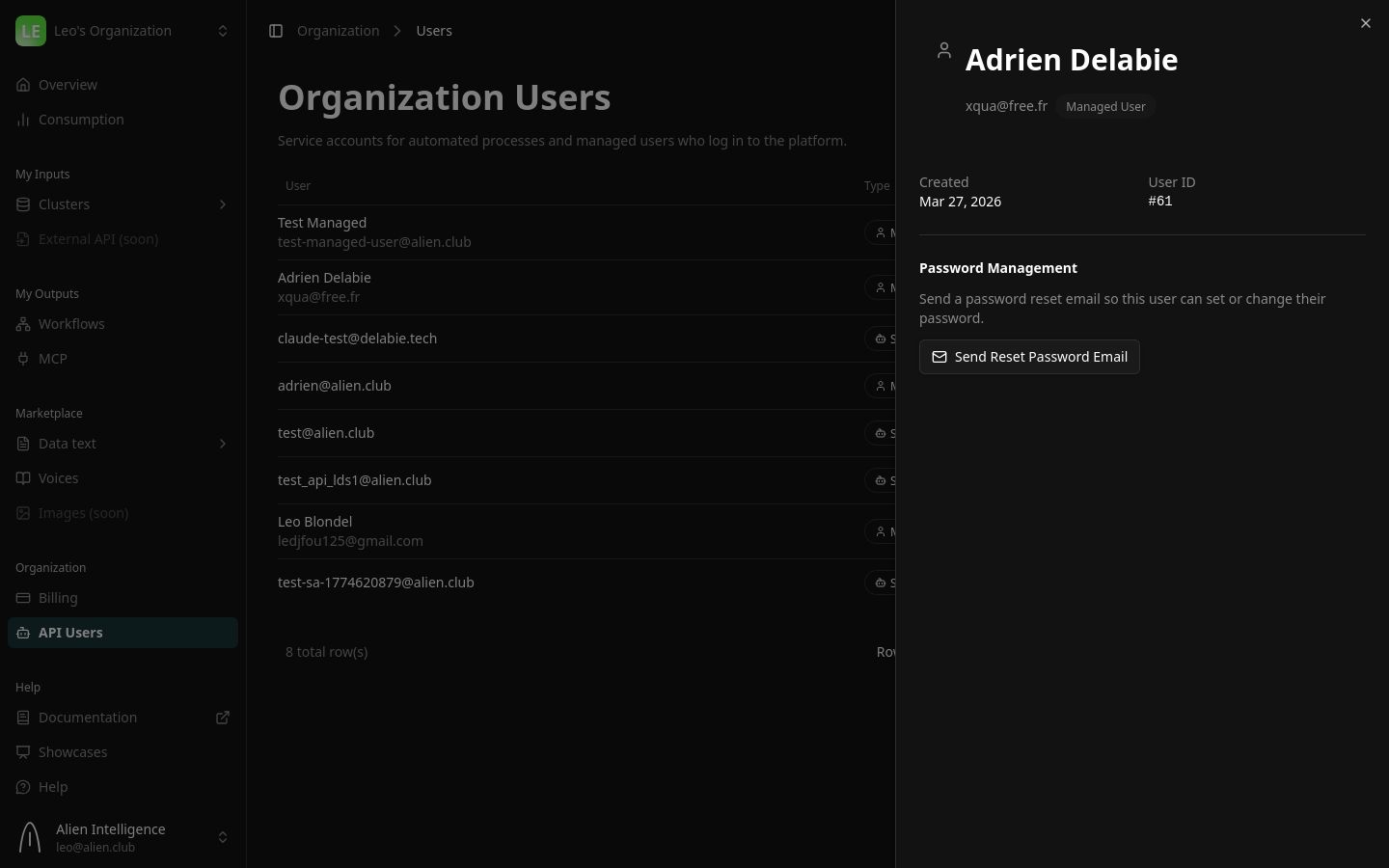
Managed users log in to the platform with email and password via OAuth. Click View on a managed user to open the detail panel.
Password Management
The detail panel shows a Password Management section with a Send Reset Password Email button. Use this to:
- Let a newly created user set their initial password (the email is sent automatically on creation, but you can resend it).
- Help a user who has forgotten their password.
- Force a password rotation for security purposes.
The reset email is sent through the identity provider (Authentik) and contains a link to set a new password.
How Managed Users Log In
After setting their password via the reset link, managed users can log in through the standard platform login page. They authenticate via OAuth with the identity provider and land in the organization with the Client role.
Deactivating a User
To cut off a user's access:
- Find the user in the table.
- Click the deactivate button (trash icon).
- Confirm the deactivation.
What happens on deactivation:
- Service Account: The user is locked and all active tokens are revoked immediately.
- Managed User: The user is locked locally and deactivated in the identity provider — they can no longer log in.
The user record is preserved for audit purposes and shows a Locked status in the table.
Reactivating a User
To restore a previously deactivated user:
- Find the locked user in the table.
- Click the reactivate button (unlock icon).
- Confirm the reactivation.
What happens on reactivation:
- Service Account: The user is unlocked. You will need to issue new tokens — previously revoked tokens cannot be restored.
- Managed User: The user is unlocked locally and reactivated in the identity provider. They can log in again with their existing password.
Use Cases
Reselling AI-Powered Document Access
Create Service Accounts for each business client. Issue scoped API tokens so clients can query your MCP server programmatically. Track usage per client for billing.
Inviting Collaborators to the Platform
Create Managed Users for team members or external collaborators who need to browse datasets, run searches, or manage workflows through the platform UI.
Hybrid Access
Some clients need both: a managed user account for their team to explore data in the UI, and a service account for their automated pipeline. Create one of each.
Important Considerations
- One user per identity. Each person or service should have their own user. This ensures proper usage attribution and independent access control.
- Service accounts cannot log in. They authenticate exclusively via API tokens.
- Managed users cannot hold API tokens. Token operations are only available for service accounts.
- Scope tokens appropriately. Use Read-only scope unless write access is genuinely needed.
- Set token expiry. Tokens without expiry are convenient but pose a security risk if leaked.
- Monitor last-used dates. Tokens that have not been used recently may indicate a lost token or abandoned integration.
- Deactivation is not deletion. Deactivated users are preserved for audit purposes with a Locked status.
What's Next
- AI Agent Integration — Full MCP protocol details and tool reference
- Deploy MCP — Deploy an MCP server on your data cluster
- Manage Your Organization — Roles, members, and billing
- Security Model — Authentication and authorization architecture